My latest steps into a mouseless life
I always enjoy dicking around in Powershell and CMD; those crazy powerful tools that make you feel like a hung chad hackerman when you do it right.
Which you probably won’t.
It can also be a much quicker and more streamlined way to get stuff done. Especially when compared to logging into and clicking around admin portals to make a TAP or assign mailbox permissions for the 40th time today. As long as you remember the commands, the syntax, when and where to use them.
Which you definitely don’t.
So I had a note full of commands I’d built up, most kind of worked, but to use them it was still a pain of a multi step process, connect to the service, find the command, get the right email into the command by either smashing the arrow key and deleting or copying it into notepad, changing the email and then copying into PowerShell. Nightmare really.
Enter Claude, answering the big questions:
- Can you set the command so when you copy and paste it in it will just ask you for the email address in question?
- Yes, read-host
- Can you the exchange / graph connect command at the start of each command? Can you stop it from asking to connect if it’s already connected?
- Yes, dumbass
- Can you make me one to -Insert everything I can think of-
- Yes
The scripts folder was born
Get Claude to turn all the commands you wish you were smart enough to remember into semi dynamic scripts of all you need to remember is what you named it. Honestly it’s more akin to making aliases than scripting; nothing groundbreaking but it took me 34 years to get here and I’m statistically smarter than you so there’s bound to be at least one other clueless stooge I can help.
How it works:
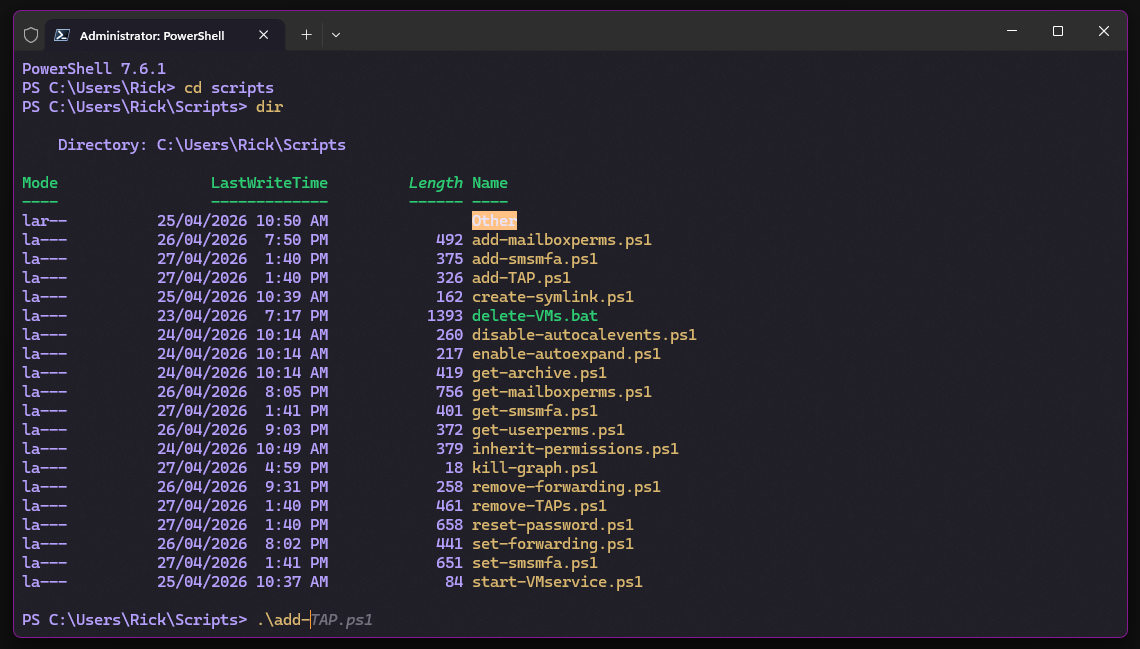
- Make a folder in your user folder, ie C:\Users\Rick\Scripts.
- Save each of these commands as a .ps1 file in that folder
- When you open terminal it’ll start in the user folder, just type ‘cd scripts’ and you’re in the right place.
- Once there you can just use ‘.\nameofscript.ps1’ and it’ll run the command.
- You don’t have to remember or edit anything beforehand, it’ll ask you to connect to the tenant if it needs to and then will ask for any details it needs before running
- If you use PowerShell 7 it’ll even autocomplete, or you can use ‘tab complete’ just type the start like ‘add’ and hitting tab will cycle through all that match
- I keep the scripts folder on my OneDrive and symlink it to C:\Users\Rick on both my PCs so they’re always sync’d. If you’re a single PC peasant and don’t case about cloud syncing your scripts you don’t have to bother with that
Note:
Claude Guide on modules and shit you need to install to do all of this and how to do the symlink can be found here: PowerShell Setup and Symlink Obviously you change the folder names to yours
Note 2
The Exchange-Online connections existing only in the tab or windows they were started in, so new tab = new connection, you can have multiple tenants running at the same time.
Note 3
MgGraph commands WILL also do that, but it’s little more fucky about it. If you connect to Graph, start a new tab and run an mggraph command, it will connect automatically to the previous tab’s login. BUT if you disconnect on that new tab the original connection remains, so to have multiple tenants running at once just remember to disconnect in between; hence the existence of the kill-graph script below, save those precious keystrokes.
Note on the note:
Everything I just said about mggraph connections isn’t super verified, I (Claude) went through a lot of variations and options, this one seemed to work sort of I guess.
here are command, enjoy please
I’ll prob add to this as I go so check in later or something.
Also here’s a link to just download them if you’re lazy
kill-graph
Disconnects MgGraph
Disconnect-MgGraphget-userperms
Tells you what mailboxes a user has permissions for This one can take a while
if (-not (Get-ConnectionInformation)) {
    Connect-ExchangeOnline
}

$user = Read-Host "Enter user"

Write-Host "`n--- Full Access ---"
Get-Mailbox -ResultSize Unlimited | Get-MailboxPermission -User $user | Select Identity, AccessRights | Format-Table

Write-Host "`n--- Send As ---"
Get-RecipientPermission -Trustee $user | Select Identity, AccessRights | Format-Table
get-mailboxperms
Tells you who has permissions to a mailbox, and if they have any mail forwarding enabled.
if (-not (Get-ConnectionInformation)) {
    Connect-ExchangeOnline
}

$mailbox = Read-Host "Enter mailbox"

Write-Host "`n--- Full Access ---"
Get-MailboxPermission -Identity $mailbox | Where-Object { $_.User -notlike "NT AUTHORITY*" -and $_.User -notlike "S-1-5*" } | Select User, AccessRights | Format-Table

Write-Host "`n--- Send As ---"
Get-RecipientPermission -Identity $mailbox | Where-Object { $_.Trustee -notlike "NT AUTHORITY*" } | Select Trustee, AccessRights | Format-Table

Write-Host "`n--- Send on Behalf ---"
Get-Mailbox -Identity $mailbox | Select -ExpandProperty GrantSendOnBehalfTo | Format-Table

Write-Host "`n--- Forwarding ---"
Get-Mailbox -Identity $mailbox | Select ForwardingSMTPAddress, DeliverToMailboxAndForward | Format-Table
add-mailboxperms
Adds full access and send as permissions to a mailbox.
if (-not (Get-ConnectionInformation)) {
    Connect-ExchangeOnline
}

$mailbox = Read-Host "Enter mailbox to grant access to"
$user = Read-Host "Enter user to grant permissions to"

Add-MailboxPermission -Identity $mailbox -User $user -AccessRights FullAccess -InheritanceType All -AutoMapping $true
Add-RecipientPermission -Identity $mailbox -Trustee $user -AccessRights SendAs -Confirm:$false

Write-Host "`nDone. $user now has Full Access and Send As on $mailbox"
set-forwarding
Enables email forwarding for a user
if (-not (Get-ConnectionInformation)) {
    Connect-ExchangeOnline
}

$mailbox = Read-Host "Enter mailbox to forward from"
$forward = Read-Host "Enter address to forward to"
$keep = Read-Host "Keep a copy in the mailbox? (y/n)"

$keepCopy = $keep -eq "y"

Set-Mailbox -Identity $mailbox -ForwardingSMTPAddress $forward -DeliverToMailboxAndForward $keepCopy

Write-Host "`nDone. $mailbox is now forwarding to $forward (Keep copy: $keepCopy)"
remove-forwarding
Removes email forwarding from a user
if (-not (Get-ConnectionInformation)) {
    Connect-ExchangeOnline
}

$mailbox = Read-Host "Enter mailbox"

Set-Mailbox -Identity $mailbox -ForwardingSMTPAddress $null -DeliverToMailboxAndForward $false

Write-Host "`nDone. Forwarding removed from $mailbox"
reset-password
Resets a Microsoft account’s password, no option to autogenerate but will ask if you want them to change on next login
if (-not (Get-ConnectionInformation)) {
    Connect-ExchangeOnline
}

if (-not (Get-MgContext)) {
    Connect-MgGraph -Scopes "User.ReadWrite.All", "Directory.AccessAsUser.All" -ContextScope Process
}

Import-Module Microsoft.Graph.Users

$user = Read-Host "Enter UPN"
$password = Read-Host "Enter new password"
$singleUse = Read-Host "Force change on next login? (y/n)"

$forceChange = $singleUse -eq "y"

$passwordProfile = @{
    Password = $password
    ForceChangePasswordNextSignIn = $forceChange
}

Update-MgUser -UserId $user -PasswordProfile $passwordProfile

Write-Host "`nDone. Password reset for $user (Force change on next login: $forceChange)"
get-smsmfa
Tells you what, if any, mobile number is currently set as 2FA on a user
if (-not (Get-MgContext)) {
    Connect-MgGraph -Scopes "UserAuthenticationMethod.ReadWrite.All" -ContextScope Process
}

$upn = Read-Host "Enter UPN"

$method = Get-MgUserAuthenticationPhoneMethod -UserId $upn | Where-Object { $_.PhoneType -eq "mobile" }

if ($method) {
    Write-Host "`nSMS 2FA number for $upn`: $($method.PhoneNumber)"
} else {
    Write-Host "`nNo SMS 2FA number set for $upn"
}
set-smsmfa
Changes the sms 2fa of a user only if there is already one set, if there isn’t use add-smsmfa
if (-not (Get-MgContext)) {
    Connect-MgGraph -Scopes "UserAuthenticationMethod.ReadWrite.All" -ContextScope Process
}

$upn = Read-Host "Enter UPN"
$phone = (Read-Host "Enter new phone number (eg +61412345678)") -replace " ", ""

$method = Get-MgUserAuthenticationPhoneMethod -UserId $upn | Where-Object { $_.PhoneType -eq "mobile" }

if (-not $method) {
    Write-Host "No existing mobile SMS method found for $upn. Use add-smsmfa instead."
    exit
}

Update-MgUserAuthenticationPhoneMethod -UserId $upn -PhoneAuthenticationMethodId $method.Id -PhoneNumber $phone -PhoneType mobile

Write-Host "`nDone. SMS 2FA number updated to $phone for $upn"
add-smsmfa
Adds a mobile number to the 2fa of an account
if (-not (Get-MgContext)) {
    Connect-MgGraph -Scopes "UserAuthenticationMethod.ReadWrite.All" -ContextScope Process
}

$upn = Read-Host "Enter UPN"
$phone = (Read-Host "Enter phone number (eg +61412345678)") -replace " ", ""

New-MgUserAuthenticationPhoneMethod -UserId $upn -PhoneNumber $phone -PhoneType mobile

Write-Host "`nDone. SMS 2FA number $phone added for $upn"
add-TAP
Crates a temporary access pass with default settings
if (-not (Get-MgContext)) {
    Connect-MgGraph -Scopes "UserAuthenticationMethod.ReadWrite.All" -ContextScope Process
}

New-MgUserAuthenticationTemporaryAccessPassMethod -UserId (Read-Host "Enter UPN") | Select TemporaryAccessPass
remove-TAPs
Removes any temporary access passes from a user
if (-not (Get-MgContext)) {
    Connect-MgGraph -Scopes "UserAuthenticationMethod.ReadWrite.All" -ContextScope Process
}

$upn = Read-Host "Enter UPN"
Get-MgUserAuthenticationTemporaryAccessPassMethod -UserId $upn | ForEach-Object {
    Remove-MgUserAuthenticationTemporaryAccessPassMethod -UserId $upn -TemporaryAccessPassAuthenticationMethodId $_.Id
}
get-archive
Give you the currently archive size, archive quote and auto expansion setting of a mailbox
if (-not (Get-ConnectionInformation)) {
    Connect-ExchangeOnline
}

$mailbox = Read-Host "Enter mailbox"

Write-Host "`n--- Archive Stats ---"
Get-MailboxStatistics $mailbox -Archive | Select DisplayName, TotalItemSize, ItemCount | Format-Table

Write-Host "`n--- Archive Quota ---"
Get-Mailbox -Identity $mailbox | Select ArchiveQuota, ArchiveWarningQuota, AutoExpandingArchiveEnabled | Format-Table
enable-autoexpand
Enables auto expanding mailbox for a single user
if (-not (Get-ConnectionInformation)) {
    Connect-ExchangeOnline
}

Enable-Mailbox (Read-Host "Enter mailbox") -AutoExpandingArchive
get-licensedusers
Produces a list of all licenced users in a tenant, also exports the list as a PST and a drops it on the desktop.
There a worst version of this Here
if (-not (Get-MgContext)) {
    Connect-MgGraph -Scopes "User.Read.All", "Directory.Read.All" -ContextScope Process
}

# Get all subscribed SKUs and build a SkuId → friendly name lookup
$skus = Get-MgSubscribedSku
$skuLookup = @{}
foreach ($sku in $skus) {
    $skuLookup[$sku.SkuId] = $sku.SkuPartNumber
}

# Get all licensed users
$users = Get-MgUser -All -Property "DisplayName,UserPrincipalName,AssignedLicenses"

$results = foreach ($user in $users) {
    if ($user.AssignedLicenses.Count -gt 0) {
        $licenseNames = $user.AssignedLicenses.SkuId | ForEach-Object { $skuLookup[$_] }

        [PSCustomObject]@{
            DisplayName       = $user.DisplayName
            UserPrincipalName = $user.UserPrincipalName
            Licenses          = $licenseNames -join ", "
        }
    }
}

$results | Format-Table -AutoSize

$results | Export-Csv -Path "$env:USERPROFILE\Desktop\LicensedUsers.csv" -NoTypeInformation

Write-Host "`nExported to $env:USERPROFILE\Desktop\LicensedUsers.csv"
disable-autocalevents
Disables automatic calendar events for a whole tenancy
if (-not (Get-ConnectionInformation)) {
    Connect-ExchangeOnline
}

Get-Mailbox -ResultSize Unlimited | Set-MailboxCalendarConfiguration -EventsFromEmailEnabled $false
inherit-permissions
Sets the permissions of everything within a folder to be inherited from that folder
$folder = Read-Host "Enter folder path"

if (-not (Test-Path $folder)) {
    Write-Host "Path not found: $folder"
    exit
}

Write-Host "`nResetting permissions for all items under: $folder"

Get-ChildItem -Path $folder -Recurse | ForEach-Object {
    icacls $_.FullName /reset /T /Q
}

Write-Host "Done."
also… PowerShell Tips and Scripts also… How to TAP in