Forward
Something I’ve had to do a bit more of lately, messing around with retention periods in Purview, specifically in regards to In-Place Archive.
Purview
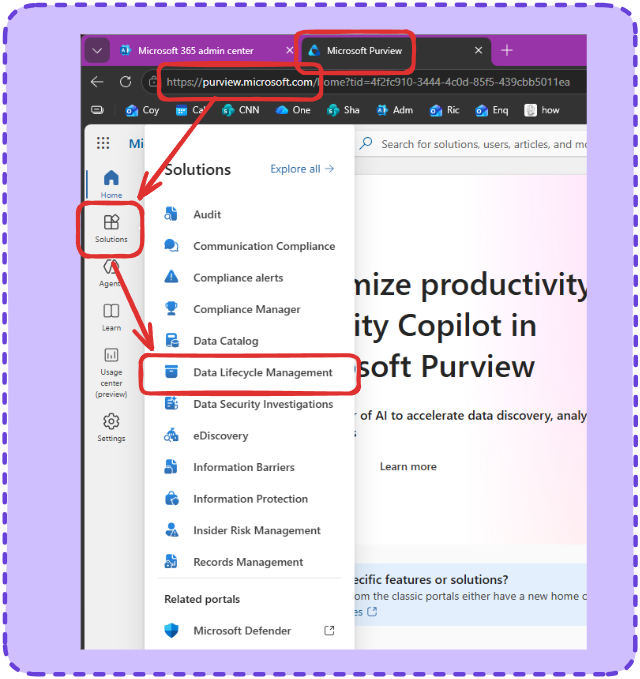
Head to the Microsoft Purview Admin Portal and go to Solutions > Data Lifecycle Management
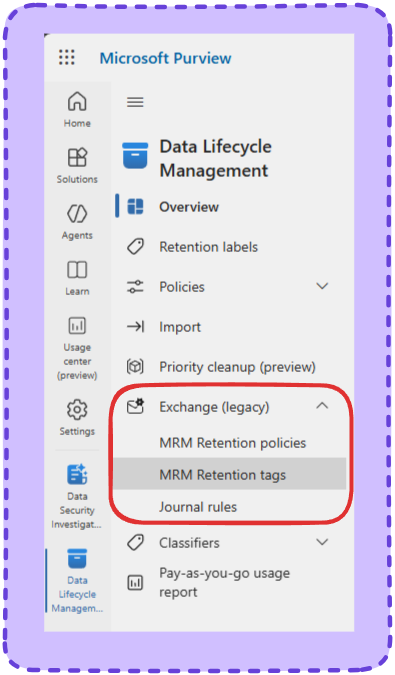
For this stuff at least we’re working exclusively under ‘Exchange (legacy)’
- MRM Retentions policies
- Policy, as the name describes is the broader one, what set of rules is a user operating under
- You’ll only touch this if you want two different sets of rules for different people / groups
- MRM Retention Tags
- These are the rules themselves each policy is made of a bunch of them
- This is where you change actual numbers.
Related PowerShell
See Retention Policies
Get-RetentionPolicySee Retention Tags
Get-RetentionPolicyTagRetention Tags
Starting here, the usual request is “Can you change the default time for emails to go to in-place archive to Insert time” and that’s dead easy it’s just one tag to change.
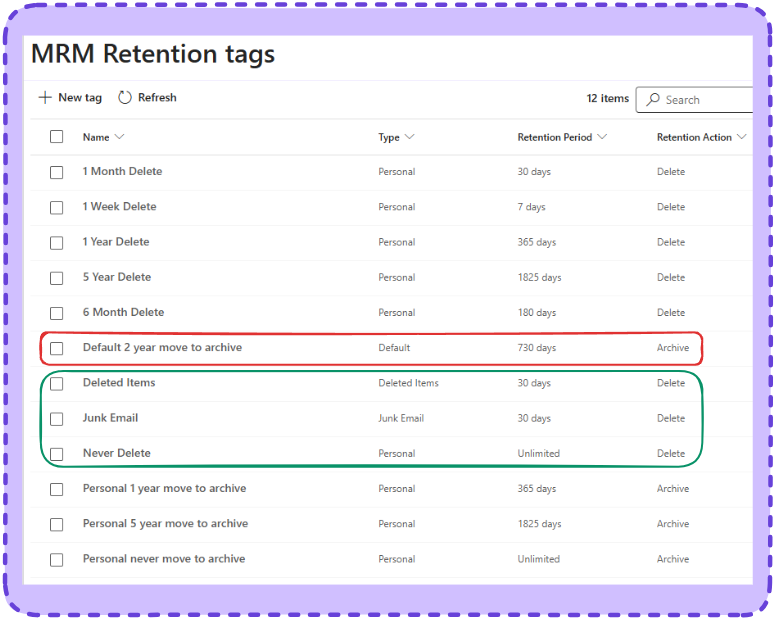
You’ll see a few familiar faces, a couple of things of note
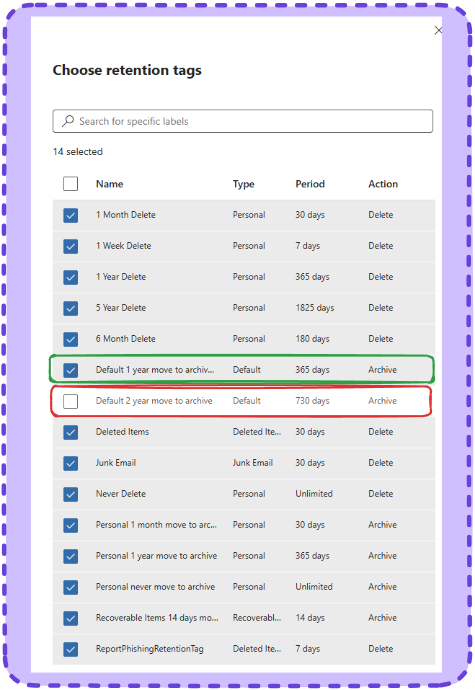
- ‘Default 2 year move to archive’ is the one we’re looking for
- That and the three in green are the only ones that ‘default’. In other words active without the user turning them on
- The ‘Personal’ type refers to outlook, users can change they’re own delete polices if you let them.
Related PowerShell
See Archive Tags
Get-RetentionPolicyTag | Where-Object {$_.RetentionAction -eq "MoveToArchive"}In-Place Archive’s Tag
Select the Default 2 year move to archive tag and click edit and you’ll get the config, it’s fairly simple, I’m not going to screenshot every step.
Step 1: Name
Name and description of the tag NOTE: If you’re going to change the retention people change the name accordingly
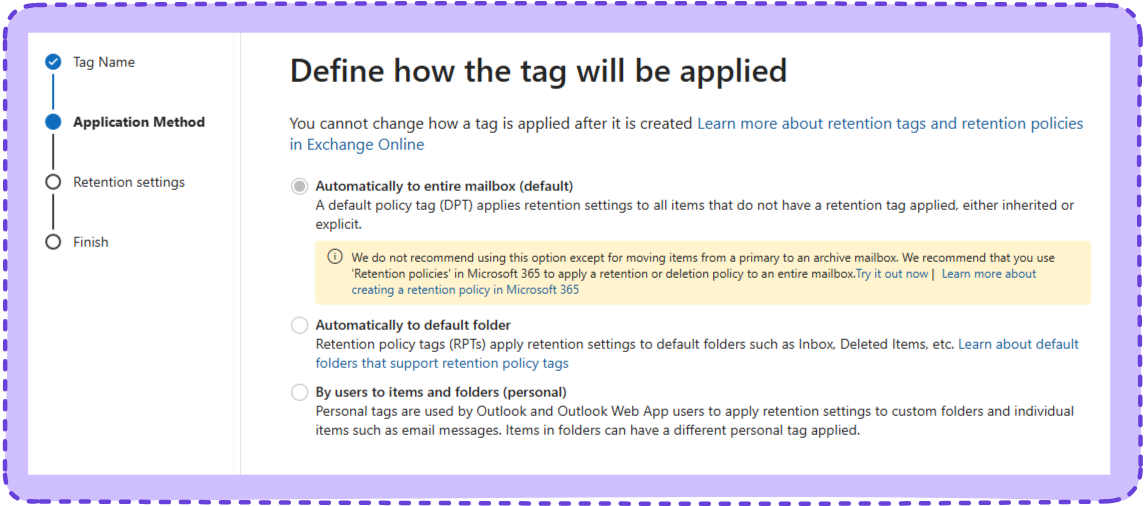
Step 2: How the tag will be applied
Self explanatory and maps the types of tags above. Options are
- Entire Mailbox
- A default folder
- Inbox, Deleted Items, etc
- By Users
- Not applied until they apply it to something in Outlook
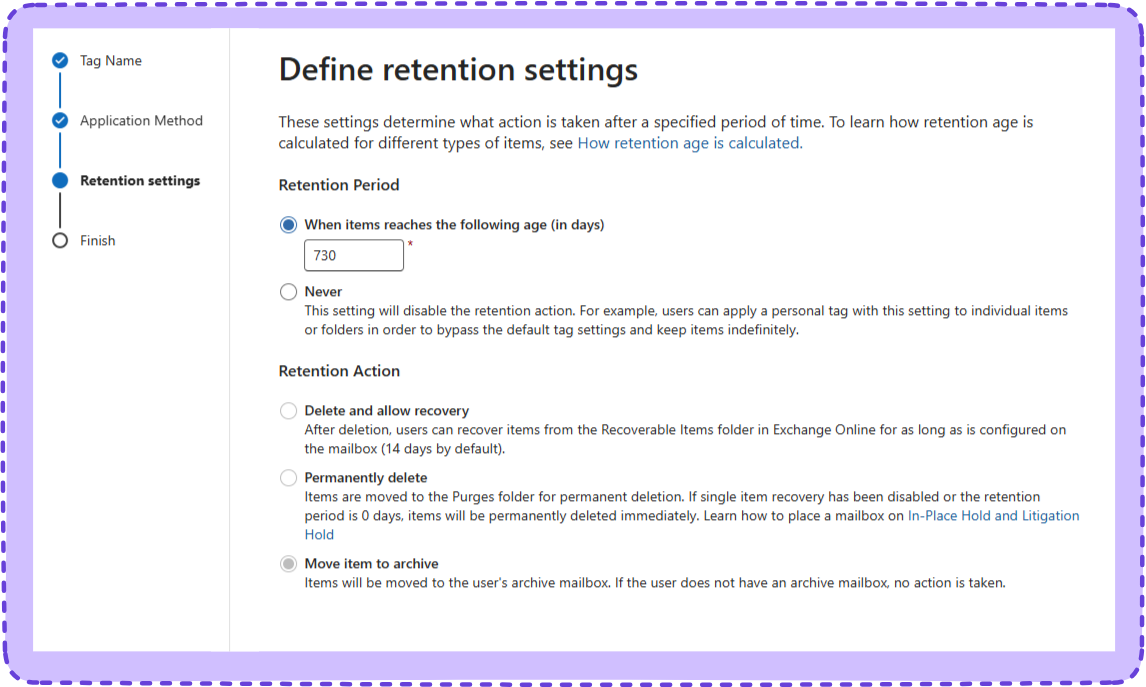
Step 3: Retention Settings
At what age to emails more, set in days. Never is also an option.
- Default is 730 days, that’s 2 years
- One year is 365 days
- Pretend LEAP years don’t exist
Under that is ‘Retention action’ does is archive, delete to the recycle bin to delete permanently?
Step 4: Finish
Review changes, hit finish. This will, change the In-Place archive retention period for everyone with the default MRM policy assigned. Which will be everyone until you’ve changed them, hence the word ‘default’. But more on that later.
Retention Policies
Later is right now. Say you’ve got the 2 year default set but a client has a mailbox that’s receives constant emails for everywhere and it’s constantly hitting capacity. They want 6 months retention on that mailbox but the standard 2 years on all the others.
That’s what policies are for. Make a second policy, identical to the default except for a the In-Place Archive Tag Changed.
Related PowerShell
See all tags on a policy
Get-RetentionPolicy "Default MRM Policy" | Select -ExpandProperty RetentionPolicyTagLinksStep One - New Tag
Head on back to Purview > Solutions > Data Lifecycle Management > Exchange Legacy > MRM Retention tags and hit ‘New tag’
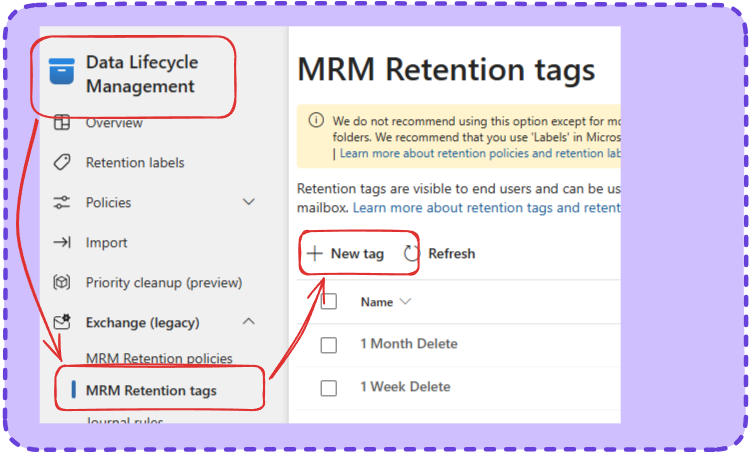
We’ve covered the next step, make a new tag with a different retention, name it something that indicates it controls the archiving and mention in the name what the retention period in set to.
Hit save.
Related PowerShell
Create a tag for 1 year archive retention
New-RetentionPolicyTag "1 Year Archive" -Type All -RetentionEnabled $true -AgeLimitForRetention 365 -RetentionAction MoveToArchiveStep 2 - New Policy
Head on back to Purview > Solutions > Data Lifecycle Management > Exchange Legacy > MRM Retention policies and hit ‘New policy’
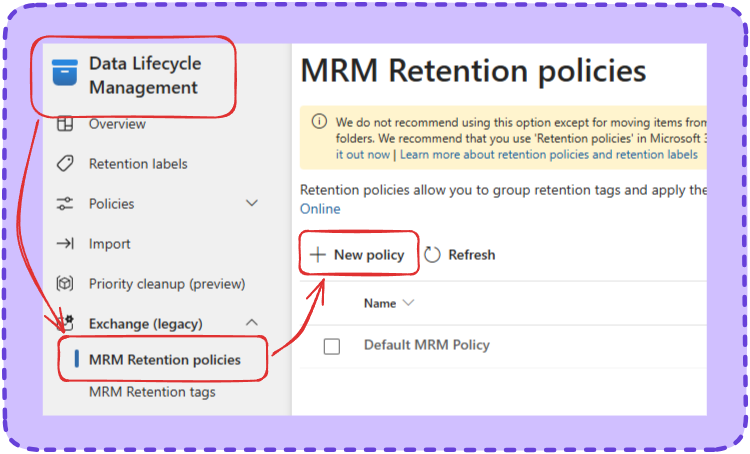
Make a new policy and for fuck sake name it appropriately. Click on ‘Add tag’ and choose every tag EXCEPT the original 2 year move to archive tag, make sure your new 1 year tag is chosen instead.
Related PowerShell
Create a new policy
New-RetentionPolicy "1 Year Archive Policy" -RetentionPolicyTagLinks "1 Year Archive"Add a tag to a policy
$tag = (Get-RetentionPolicyTag "1 Year Archive").Guid
Set-RetentionPolicy "Default MRM Policy" -RetentionPolicyTagLinks @{Add=$tag}
Step 3 - Apply the policy
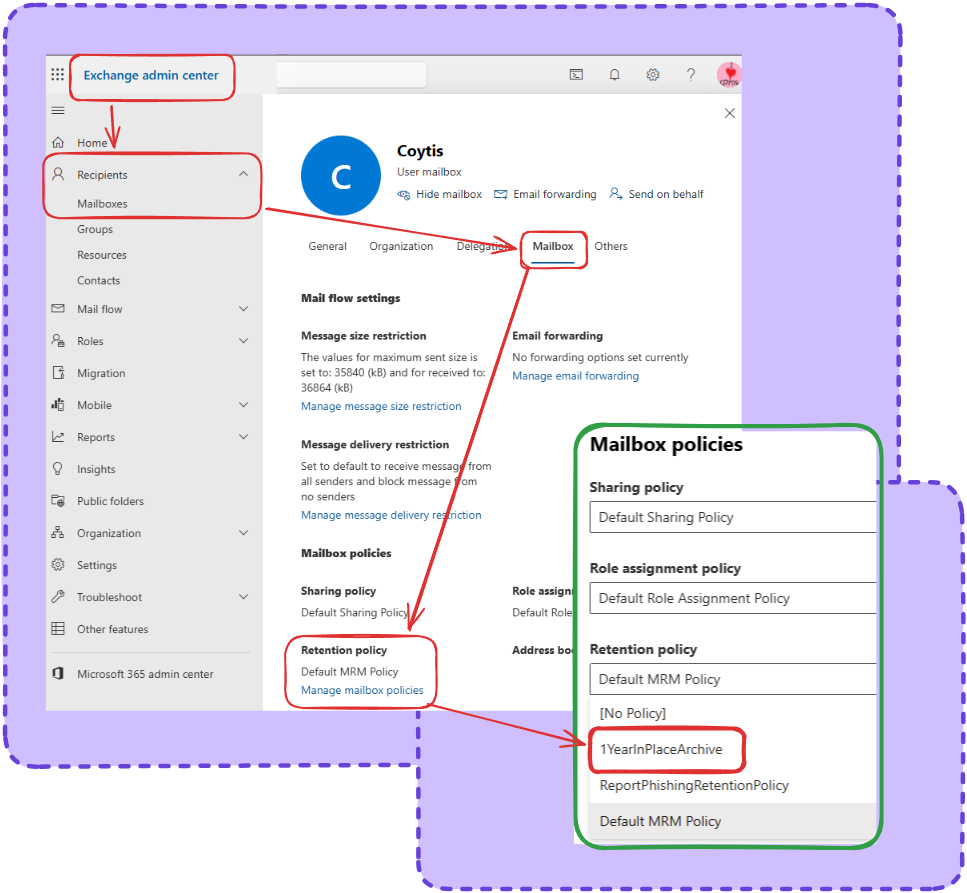
One your policy is made, remember it will need to be applied to users because by default they default to the default. This can be done in the Exchange Admin Center under Recipients > Mailboxes > pick a mailbox > Mailbox >Retention Policy.
Change it over to the new one and let the archiving get to it.
Related PowerShell
Assign a policy to a mailbox
Set-Mailbox -Identity "[email protected]" -RetentionPolicy "1 Year Archive Policy"Do everything above at once - Make a copy of the default with a swapped archive tag
# First — confirm the exact name of the 2 year archive tag in the policy
Get-RetentionPolicy "Default MRM Policy" | Select -ExpandProperty RetentionPolicyTagLinks

# Create the 1 year archive tag if it doesn't exist
New-RetentionPolicyTag "1 Year Archive" -Type All -RetentionEnabled $true -AgeLimitForRetention 365 -RetentionAction MoveToArchive

# Grab all existing tags except the 2 year archive one
$existingTags = (Get-RetentionPolicy "Default MRM Policy").RetentionPolicyTagLinks
$newTags = $existingTags | Where-Object {$_ -notlike "*2 Year*"}

# Create new policy with swapped tag
New-RetentionPolicy "1 Year Archive Policy" -RetentionPolicyTagLinks ($newTags + "1 Year Archive")